How to set it up
Delicate DJ plays your library at app.delicateaudio.com, your own files, and — with your own accounts — YouTube, SoundCloud and Qobuz. Everything below lives in Settings (the button under the crossfader).
SourcesYouTube and SoundCloud
Both are fetched with your own logged-in account, so you need to hand the app your browser cookies for each site once. This takes two minutes.- Install the Chrome extension Get cookies.txt LOCALLY. In
chrome://extensions→ Details, switch on Allow in Incognito. - Open a private (incognito) window and log in at youtube.com. A private window matters: the cookies you export are then not shared with the tabs you keep using, so YouTube won't rotate them under the app's feet.
- Still in that private tab on youtube.com, click the extension icon → Export (current site). A file
youtube.com_cookies.txtlands in your Downloads. - In Delicate DJ → Settings → Sources → YouTube login → upload, pick that file. The status turns to "connected".
- Repeat 2–4 for soundcloud.com and upload under SoundCloud login.
- Close the private window. Then delete the cookies files from your Downloads — they are as good as your password.
Use it: press YouTube or SoundCloud next to the search box, type to search, or paste a link. A/B fetches the track in full quality, analyses it, and loads it on the deck; after that it's in your list like any other track.
If fetching stops working with "Sign in to confirm you're not a bot", the cookies have expired: export again from a fresh private login and upload once more. Keep this to your own circle — fetching from these platforms is against their terms, your account is the one at risk.
SourcesQobuz
Needs a Qobuz subscription (Studio/Sublime). Since spring 2026 Qobuz no longer accepts e-mail + password from apps — only the web player can log in. So you log in there once and hand the app your session token (user id +user_auth_token). The token stays valid for a while; when searches start failing, repeat the steps.
Easy way — console helper
- Open
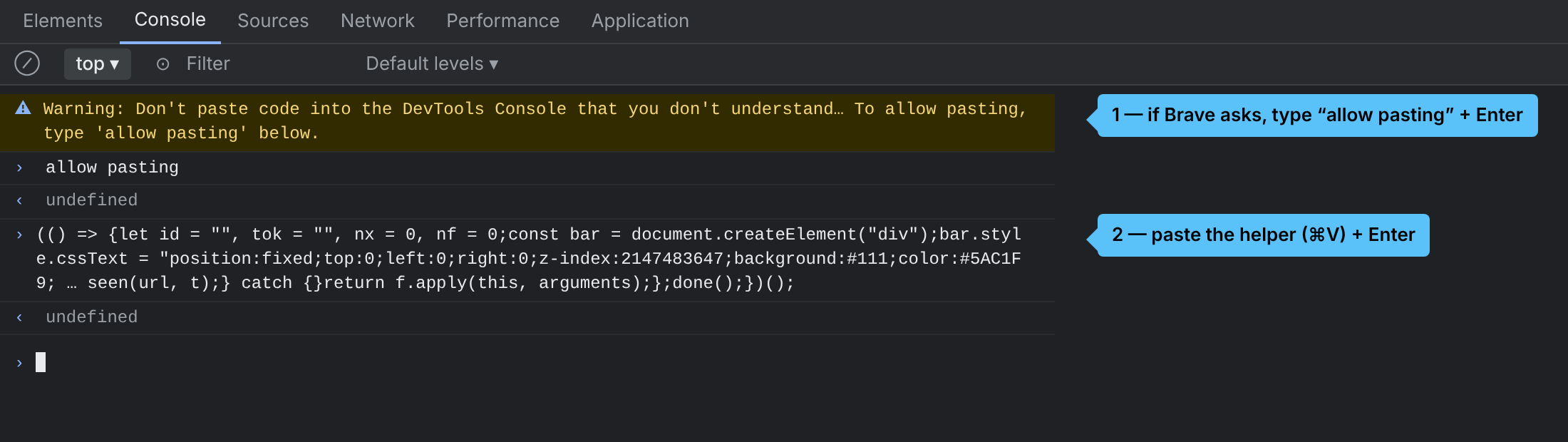
https://play.qobuz.comand log in as usual. - Open DevTools (⌥⌘I / F12) → Console tab. Press copy helper below, paste it into the console, Enter. (Chrome may ask you to type
allow pastingfirst — do that, then paste again.)
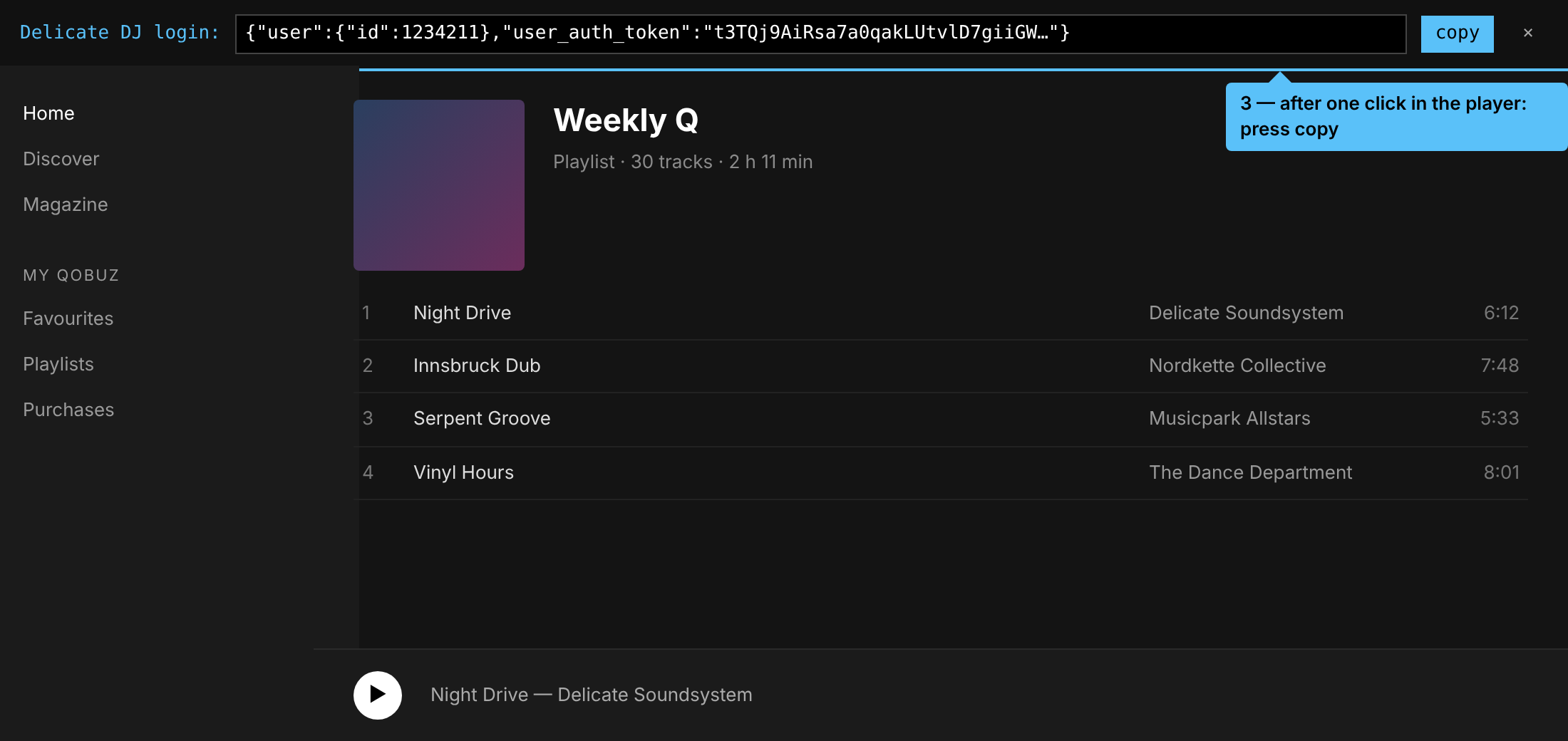
- A blue bar appears at the top of the player. Click a playlist or play a track — the bar fills with your login line (or just the token, if the app already knows your user id); press its copy button.
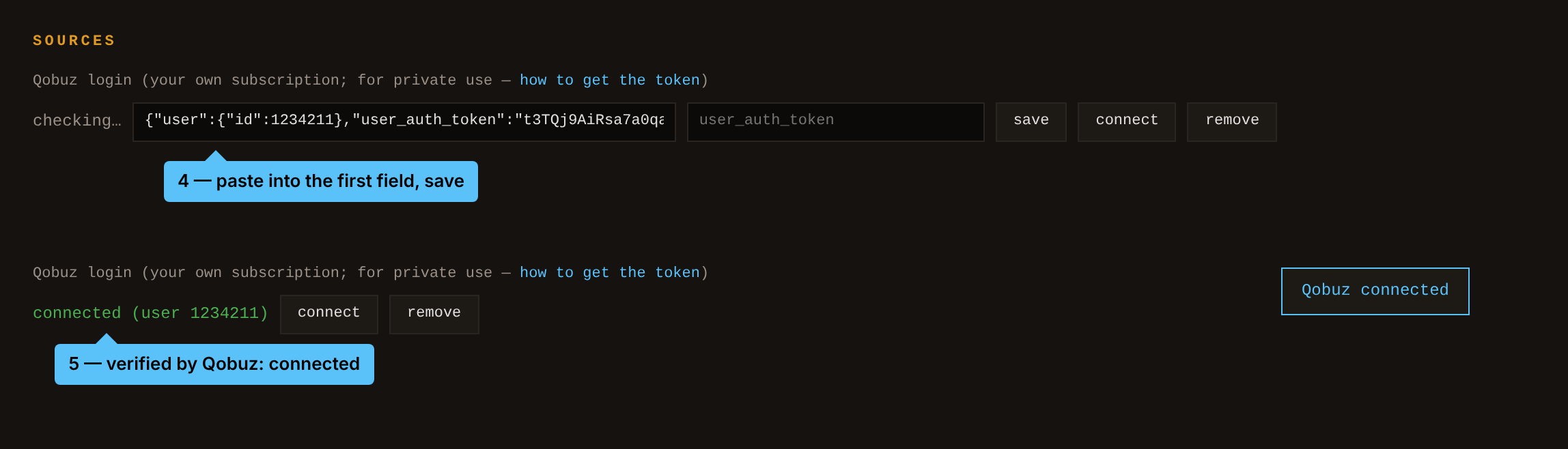
- DJ app → Settings → Sources → Qobuz login → connect → paste into the first field → save. The app checks the token with Qobuz and shows connected.
(() => {
  let id = "", tok = "", nx = 0, nf = 0;
  const bar = document.createElement("div");
  bar.style.cssText = "position:fixed;top:0;left:0;right:0;z-index:2147483647;background:#111;color:#5AC1F9;font:13px/1.4 monospace;padding:10px 14px;border-bottom:2px solid #5AC1F9;display:flex;gap:10px;align-items:center;flex-wrap:wrap";
  const txt = document.createElement("span");
  const inp = document.createElement("input");
  inp.readOnly = true;
  inp.style.cssText = "flex:1;min-width:200px;background:#000;color:#fff;border:1px solid #444;padding:4px 6px;font:inherit;display:none";
  const btn = document.createElement("button");
  btn.textContent = "copy";
  btn.style.cssText = "background:#5AC1F9;color:#000;border:0;padding:4px 10px;font:inherit;cursor:pointer;display:none";
  btn.onclick = () => { inp.select(); navigator.clipboard.writeText(inp.value).then(() => { btn.textContent = "copied — paste it in the DJ app"; }).catch(() => { document.execCommand("copy"); btn.textContent = "copied"; }); };
  const x = document.createElement("button");
  x.textContent = "×";
  x.style.cssText = "background:transparent;color:#aaa;border:0;font:inherit;cursor:pointer";
  x.onclick = () => bar.remove();
  bar.append(txt, inp, btn, x);
  document.body.appendChild(bar);
  const status = () => { txt.textContent = "Delicate DJ — id " + (id ? "✓" : "–") + " token " + (tok ? "✓" : "–") + " (xhr " + nx + ", fetch " + nf + ") — click a playlist / play a track…"; };
  const done = () => {
    if (!tok) { status(); return; }
    const out = id ? JSON.stringify({ user: { id: Number(id) }, user_auth_token: tok }) : tok;
    txt.textContent = id ? "Delicate DJ login:" : "Delicate DJ token (user id stays as before):";
    inp.value = out; inp.style.display = ""; btn.style.display = "";
  };
  const seen = (url, t) => {
    if (t && !tok) tok = t;
    const m = String(url || "").match(/user_id=(\d+)/);
    if (m && !id) id = m[1];
    done();
  };
  const scan = store => {
    try {
      for (let i = 0; i < store.length; i++) {
        const v = store.getItem(store.key(i)) || "";
        const mt = v.match(/user_auth_token"?\s*[:=]\s*"?([A-Za-z0-9_\-]{30,})/);
        const mi = v.match(/"user"\s*:\s*\{[^{}]*?"id"\s*:\s*"?(\d+)/) || v.match(/user_id"?\s*[:=]\s*"?(\d+)/);
        if (mt && !tok) tok = mt[1];
        if (mi && !id) id = mi[1];
      }
    } catch {}
  };
  scan(localStorage); scan(sessionStorage);
  const xo = XMLHttpRequest.prototype.open, xs = XMLHttpRequest.prototype.setRequestHeader;
  XMLHttpRequest.prototype.open = function (m, u) { nx++; this.__u = u; seen(u, null); return xo.apply(this, arguments); };
  XMLHttpRequest.prototype.setRequestHeader = function (k, v) { if (/^x-user-auth-token$/i.test(k)) seen(this.__u, v); return xs.call(this, k, v); };
  const f = window.fetch;
  window.fetch = function (u, i) {
    nf++;
    try {
      const url = typeof u === "string" ? u : u.url;
      let t = null;
      const h = (i && i.headers) || (u && u.headers);
      if (h) { if (typeof h.get === "function") t = h.get("x-user-auth-token"); else if (Array.isArray(h)) { const e = h.find(p => /^x-user-auth-token$/i.test(p[0])); t = e && e[1]; } else { for (const k in h) if (/^x-user-auth-token$/i.test(k)) t = h[k]; } }
      seen(url, t);
    } catch {}
    return f.apply(this, arguments);
  };
  done();
})();
Manual way
- In Chrome open
https://play.qobuz.com/loginbut don't log in yet. - Open DevTools (⌥⌘I / F12) → Network tab. In the filter box type
login. - Now log in on the page. A request named
login(oruser/login) appears. Click it → Response (or Preview). - Select the whole response text (click into it, ⌘A, ⌘C).
- In the DJ app: Settings → Sources → Qobuz login → connect, paste it into the first field, save. The app picks out the numeric
idand theuser_auth_tokenitself, verifies them with Qobuz and shows connected only if they work. (You can also paste the two values separately.) - Press Qobuz next to the search box and type to search, or paste a link from
open.qobuz.comorplay.qobuz.com(track or whole album). Downloads are 24-bit FLAC.
The token is stored only on the server in your private config, like the cookies. Logging out of the Qobuz web player may invalidate it — then repeat the steps.
Same rule as above: your own account, your own listening. Qobuz's terms allow streaming, not keeping files — treat it as private use.
SourcesBandcamp
Imports the music you bought on Bandcamp, in FLAC, through Bandcamp's own re-download links — your purchases, nothing else.- Log in on
bandcamp.comin a private window and exportcookies.txtwith the same extension as for YouTube (see above). - Settings → Sources → Bandcamp login → upload that file.
- Press Bandcamp next to the search box: your collection appears, newest first. ↓ imports an album or track (A/B imports and loads the first track), import all fetches everything you haven't imported yet in the background. Type to filter the list.
- Typing three letters or more also searches all of Bandcamp: results you own import in FLAC; others are marked stream — A/B loads the public 128 kbps preview (tracks only), ↗ opens the page to buy it.
- You can also paste a link (
…bandcamp.com/album/…or/track/…) into the search box — purchased → FLAC import, otherwise a single track's preview stream.
Imported tracks are analysed (BPM, key, waveform) like any other and show up with the Bandcamp mark; stems and offline preparation work on them too. If a release is only available as MP3 from the seller, it is imported as that.
SourcesYour own files
Drag any audio file from the Finder straight onto a deck. It's decoded in the browser, the waveform builds while it plays. Local files stay on your machine and are not uploaded.BroadcastLive stream and relays
- Settings → Live → copy the private link and send it to your listeners. Anyone with the link can listen; "new link" cuts off the old one.
- Press ON AIR under the master fader. The listener page switches to "on air" within a few seconds and shows what's playing. Latency is about 6–8 seconds.
- Listeners can chat and send reactions; your replies go through the MSG box.
- To go out to Twitch, YouTube Live or Mixcloud Live as well, paste the platform's stream key under Relay and save. Each relay gets your audio plus a still "LIVE" card as video.
A public stream of commercial music needs licences (AKM/LSG in Austria) or a platform that carries them. The private link is for your circle.
Playing outPrepare for a gig
- Build the queue (the panel right of the library): + on tracks, albums or drag them in.
- Press prepare gig. Every queued track is downloaded to this computer with its waveform, grid and cues; the row fills gold while it downloads, the number turns green when it's there. +stems also makes and downloads the stems.
- At the venue the app works without a connection: tracks marked with the arrow load from the local copy; "offline" shows at the top. Log in once while still online — the login is remembered.
Also useful at a gig: ▶ auto in the queue plays through it with automatic crossfades; touching the crossfader takes over. If the browser is reloaded, the decks come back where they were.
DecksStems
Stems on a deck splits the playing track into drums, bass, vocals and other (about 40 seconds the first time, instant afterwards). The waveform shows four lanes; DR BA VO OT mute a stem, shift-click solos. The quality (standard or high, 24-bit at the track's own rate) is in Settings → Audio.ReferenceKeyboard
Spaceplay/pause focused deck
Q / Pplay deck A / B
W / Ocue A / B
S / Lsync A / B
E / Iloop A / B
T / Utap tempo A / B
1–4 / 7–0hot cues A / B (shift clears)
← →beat jump (shift: 1 beat)
[ ]nudge grid
Ddownbeat here
+ −zoom waveform
drag waveformscrub